

Find the best model of a dataset
A dataset collects trainings: the first try, a longer one, one with more images. The «Models» tab lists them all with their scores, marks the best one and lets you sort, filter and search them. This guide finds the best model of a dataset of glass jars and deletes a model that is no longer needed.
What you will learn
- How to read the list of models
- Which model the platform marks as the best, and why
- How to sort, filter and search the list
- How to delete a model
Before you start
You need a dataset with at least two finished trainings.
1. Open the models
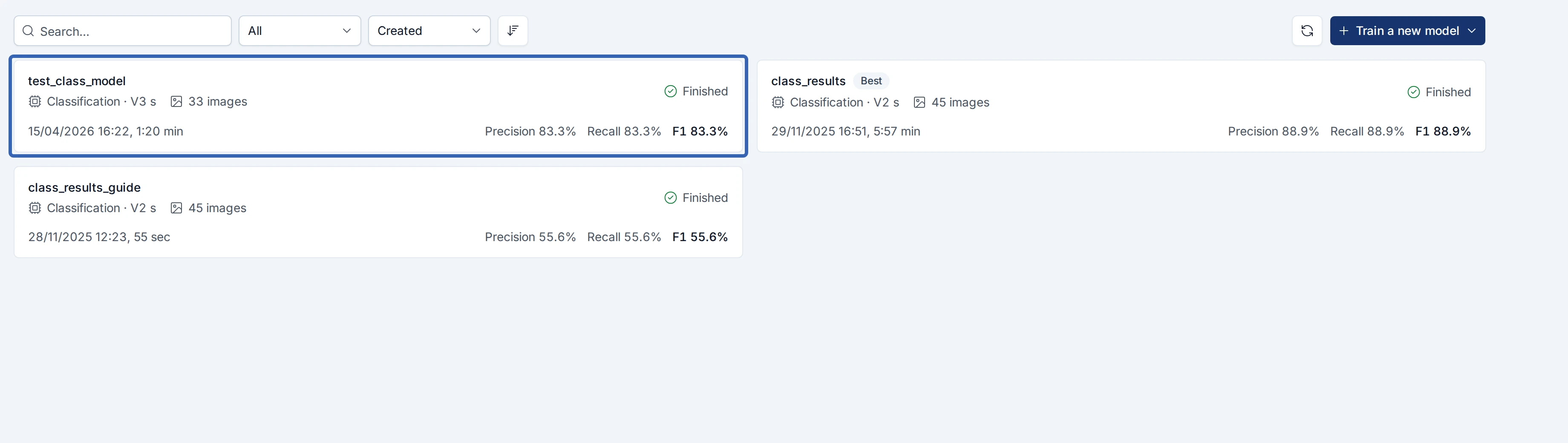
Open the dataset and go to the «Models» tab. Each card is a training: its name, the type and size of model, the images it used and how they were split, its state, the date and how long it trained, and its precision, recall and F1 score on the test images.
2. Spot the best
The «Best» mark goes to the finished model with the highest F1 score on its test images. It only appears when the dataset has two models or more. Compare F1 scores between trainings of the same dataset: with other images, scores are not comparable.

3. Sort by score
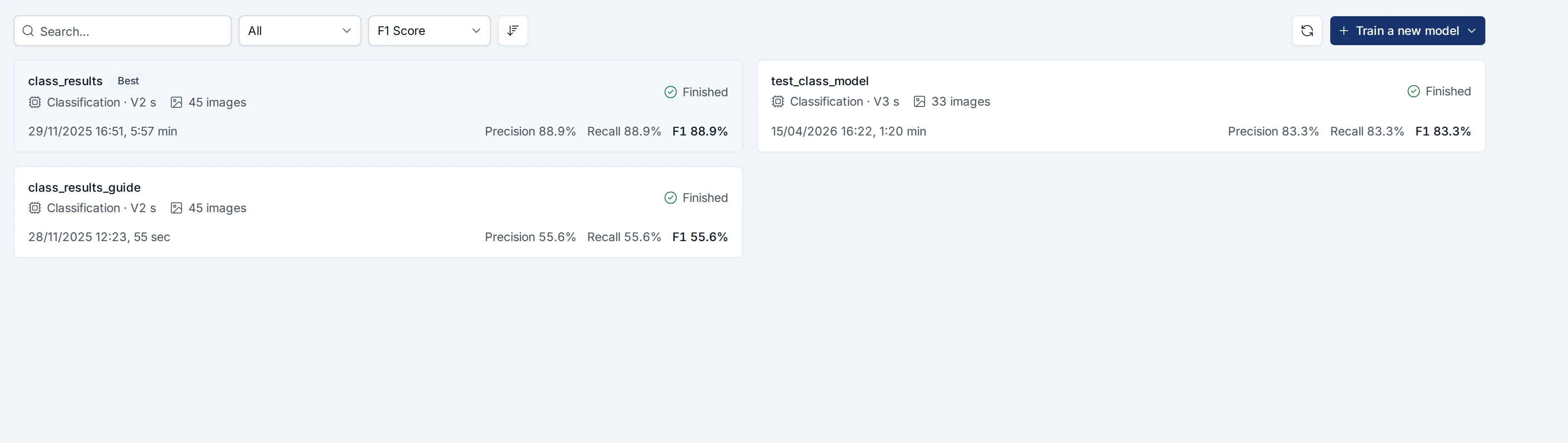
The list starts with the newest training. Open the menu that says «Created» and choose «F1 Score» to put the best first; the arrow next to it reverses the order.
4. Filter by state
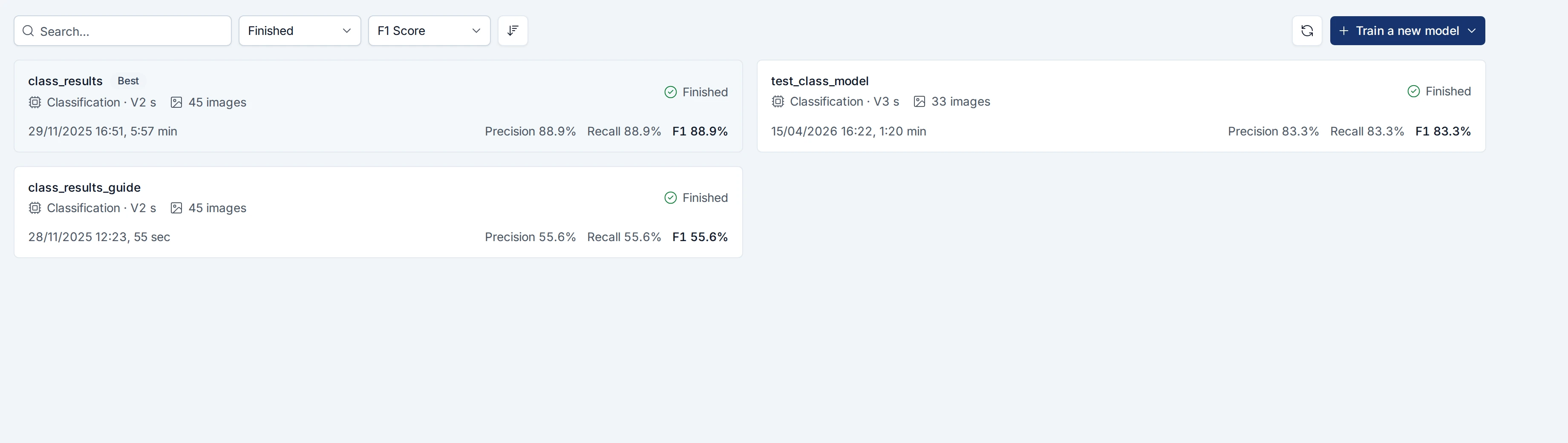
The state menu, «All» at first, keeps only the trainings in one state: «Finished», «Failed», «Pending» or «Training». «Failed» finds the trainings that never gave a model. When nothing matches, «Reset filters» brings the whole list back.
5. Search by name
Type part of a name in the search box to keep the trainings whose name contains it. Naming trainings with a version or a date pays off here.

6. Open a model you no longer need
Cancelled and failed trainings, old tries and models replaced by a better one only make the list longer. To delete one, here a cancelled training of another dataset, open it from the list and click «More options», the three dots at the top right.

7. Delete it
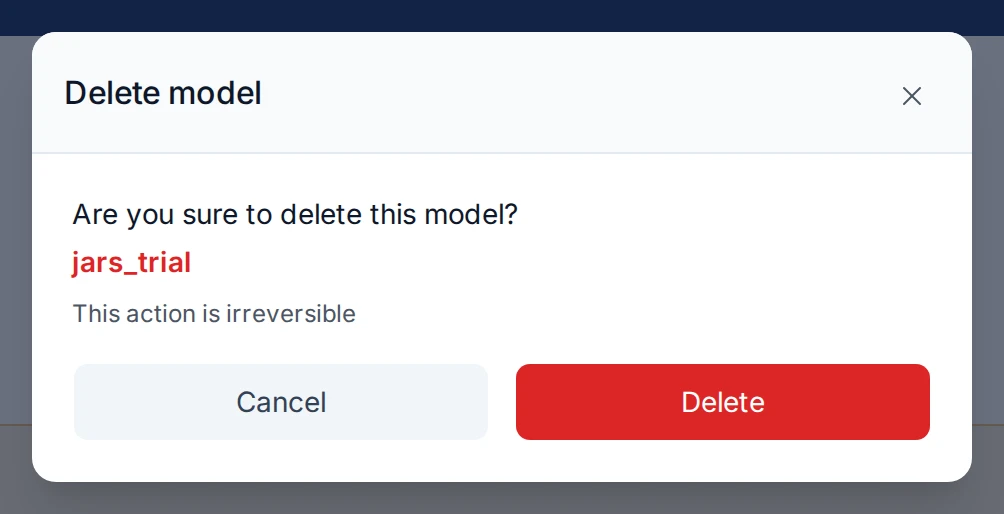
Choose «Delete model». The dialog names the model and warns that deleting it cannot be undone.
8. Confirm
Click «Delete». The model goes for good, with its results and the share links made for it. A flow that still runs the model can no longer load it: check the flows of your controllers first.
Next steps
- Read the results of a classification model to look beyond the F1 score
- Share model results with a link
Recorded on Rosepetal release 1.8.15.